Cool gray copy paper
Fog Photocopy
Fog-gray paper, graphite text, and quiet slate links built for long reading sessions.
 AO3SKIN.comHow to use
WEEKLY AO3 SITE SKIN PICKS
Preview every palette, open the complete CSS, and copy a ready-to-use skin to your AO3 account in minutes.
New to site skins? Read the setup guideEvery skin is selected from our own library, uses no external images, and is ready to paste directly into AO3.
Cool gray copy paper
Fog-gray paper, graphite text, and quiet slate links built for long reading sessions.
Unbleached paper
Warm natural paper, charcoal type, and stone-gray chrome with the calm feel of an unbound book.
Celadon glaze
A soft celadon page with warm charcoal text and deep teal in place of the Archive red.
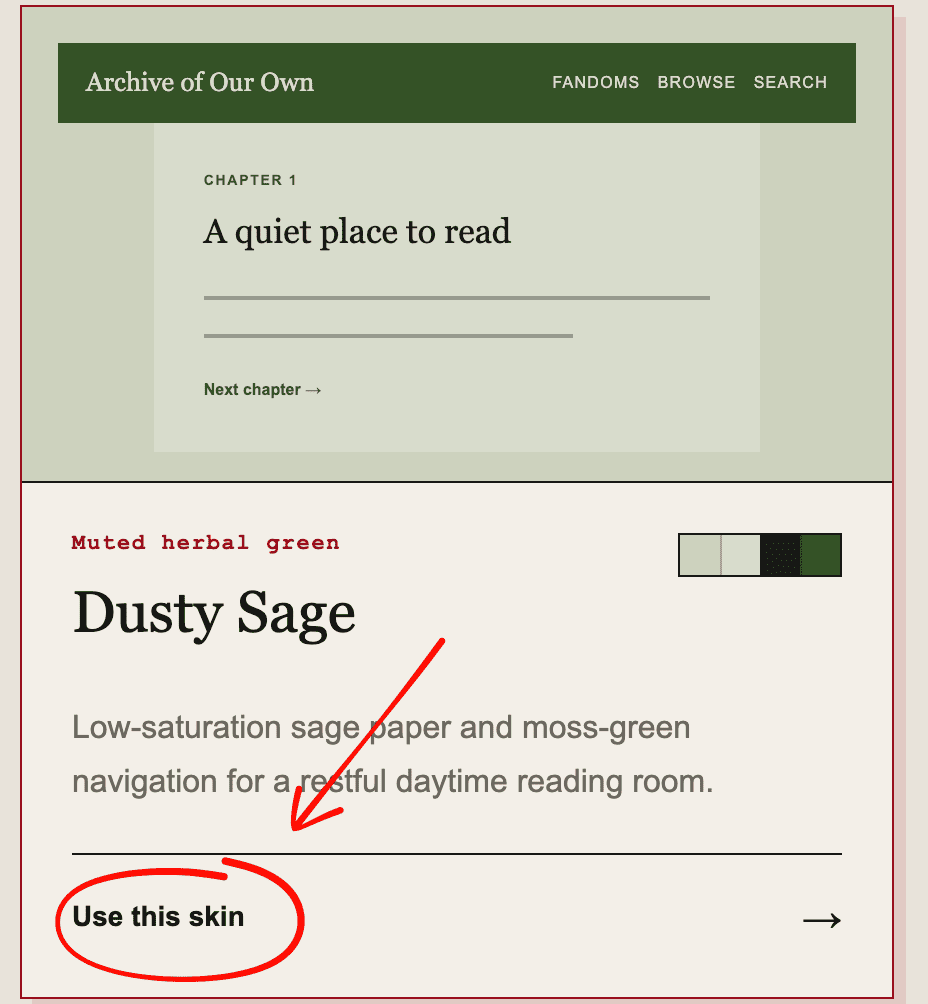
Muted herbal green
Low-saturation sage paper and moss-green navigation for a restful daytime reading room.
Lilac and ripe plum
A pale lilac page with graphite text and damson accents—soft without feeling sugary.
Blush and raspberry
Warm blush paper carries soft gray text while raspberry brings links and controls into focus.
Black-and-white broadsheet
Bright white paper and newspaper-black ink strip reading back to its clearest essentials.
Camel and chestnut
Warm camel paper, coffee-brown type, and chestnut controls recall a well-used writing desk.
Fresh snow and winter plum
Snow-white paper and cool charcoal text, finished with a restrained winter-plum accent.
Salt foam and open sky
Foam-white reading surfaces, pale summer sky, and seawater-teal links with no extra ornament.
Learn how to create an AO3 Site Skin, paste custom CSS, and activate it on your account in four simple steps. No downloads or browser extensions required.
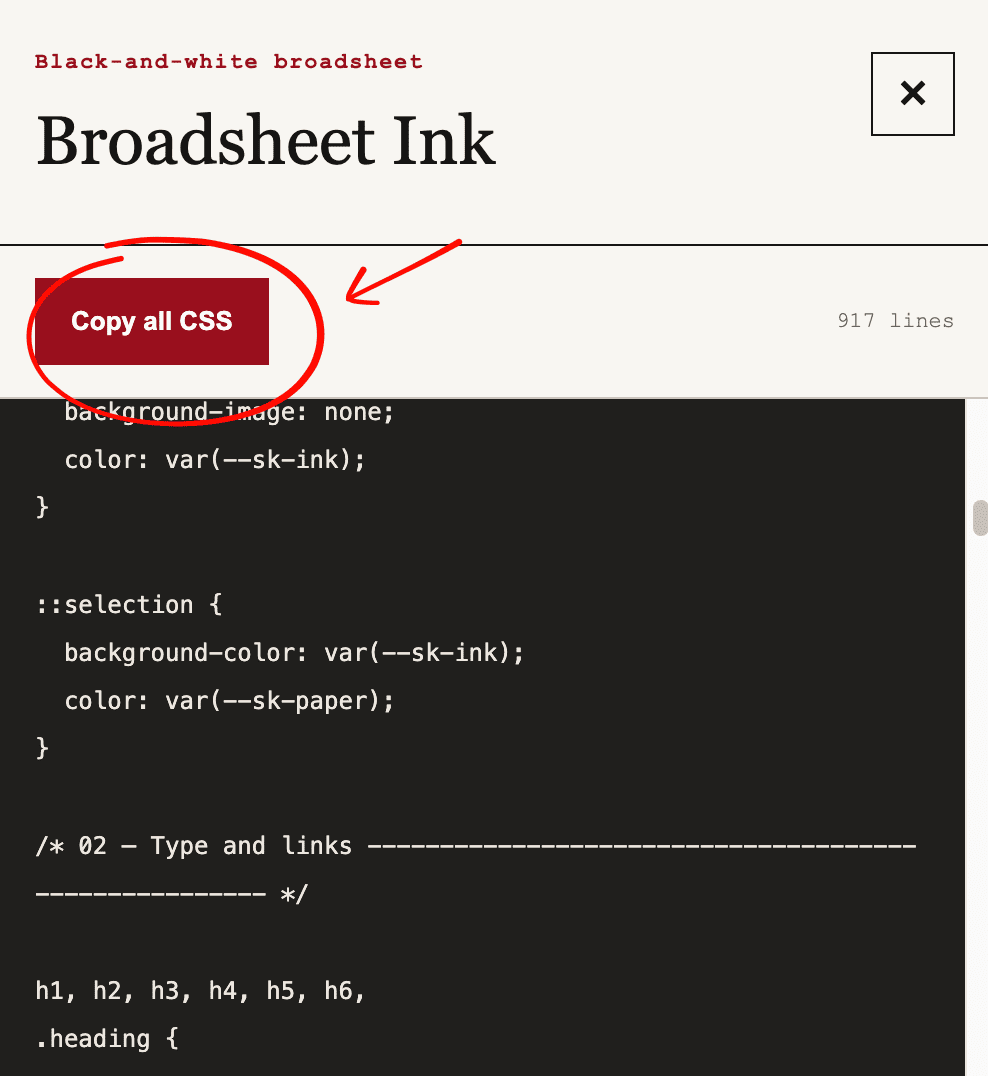
Browse the collection above and select Use this skin on the palette you want. A code panel will open from the right; select Copy all CSS to copy the complete skin to your clipboard.
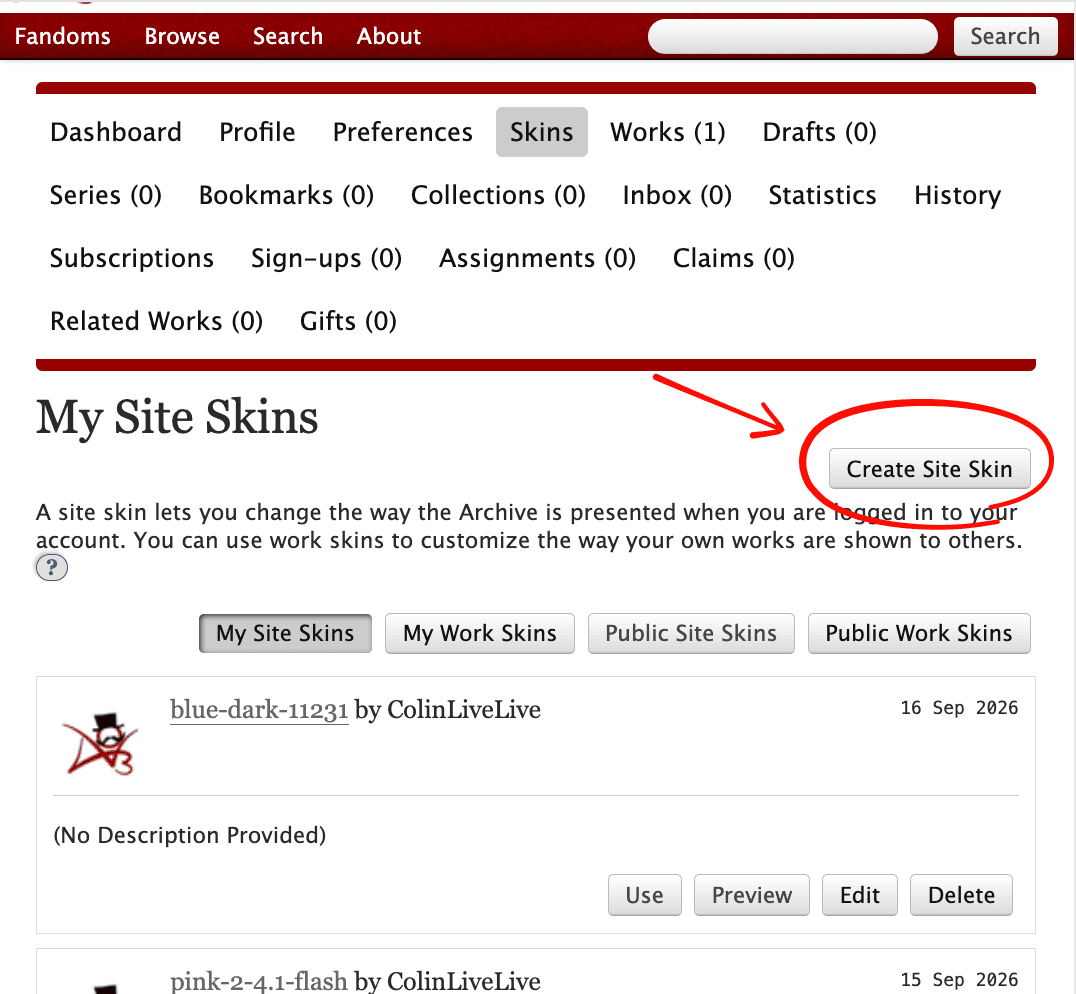
Sign in to AO3 and open your Skins page from the dashboard. Make sure My Site Skins is selected, then choose Create Site Skin.
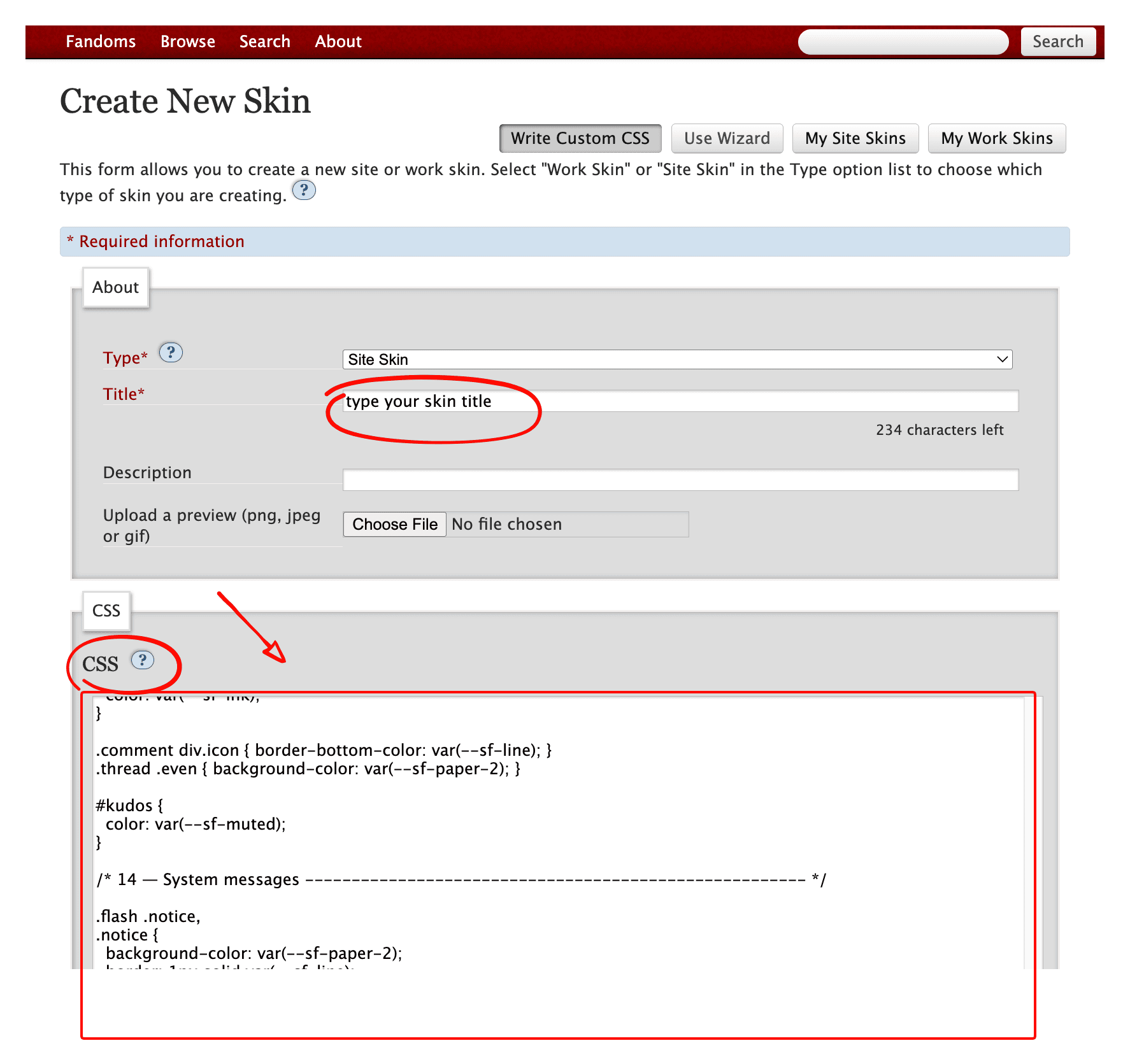
Leave Type set to Site Skin, enter any title you will recognize, and paste the copied code into the large CSS field. Description and preview image are optional. Scroll to the bottom and select Submit.
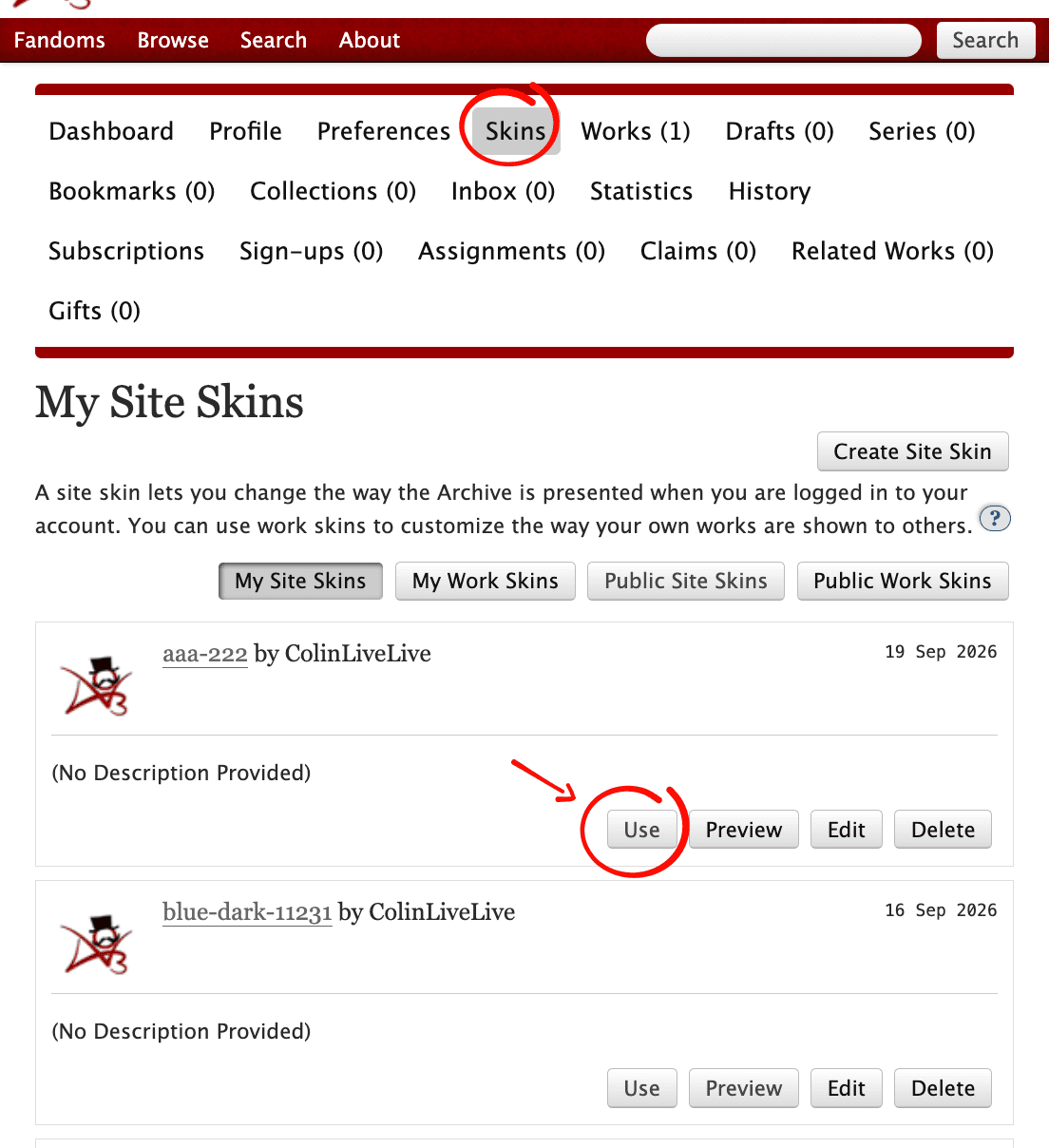
After saving, return to My Site Skins and find the skin you just created. Select Use; AO3 will apply it to your account immediately. You can return here at any time to preview, edit, or switch skins.